The main pane shows the diff of whatever the panel has under its cursor. This page is about reading it. Staging is about acting on it.
What the renderer does
Section titled “What the renderer does”- Colors the code by language.
- Marks the words that changed inside a changed line, not only the line.
- Collapses long runs of unchanged lines, and says how many it hid.
The same renderer draws the read views and the staging editor, so nothing moves under you when you start staging.
Two layouts
Section titled “Two layouts”| Value | Result |
|---|---|
auto |
Side by side when the pane is wide, stacked when it is narrow |
split |
Always side by side |
stack |
Always one column |
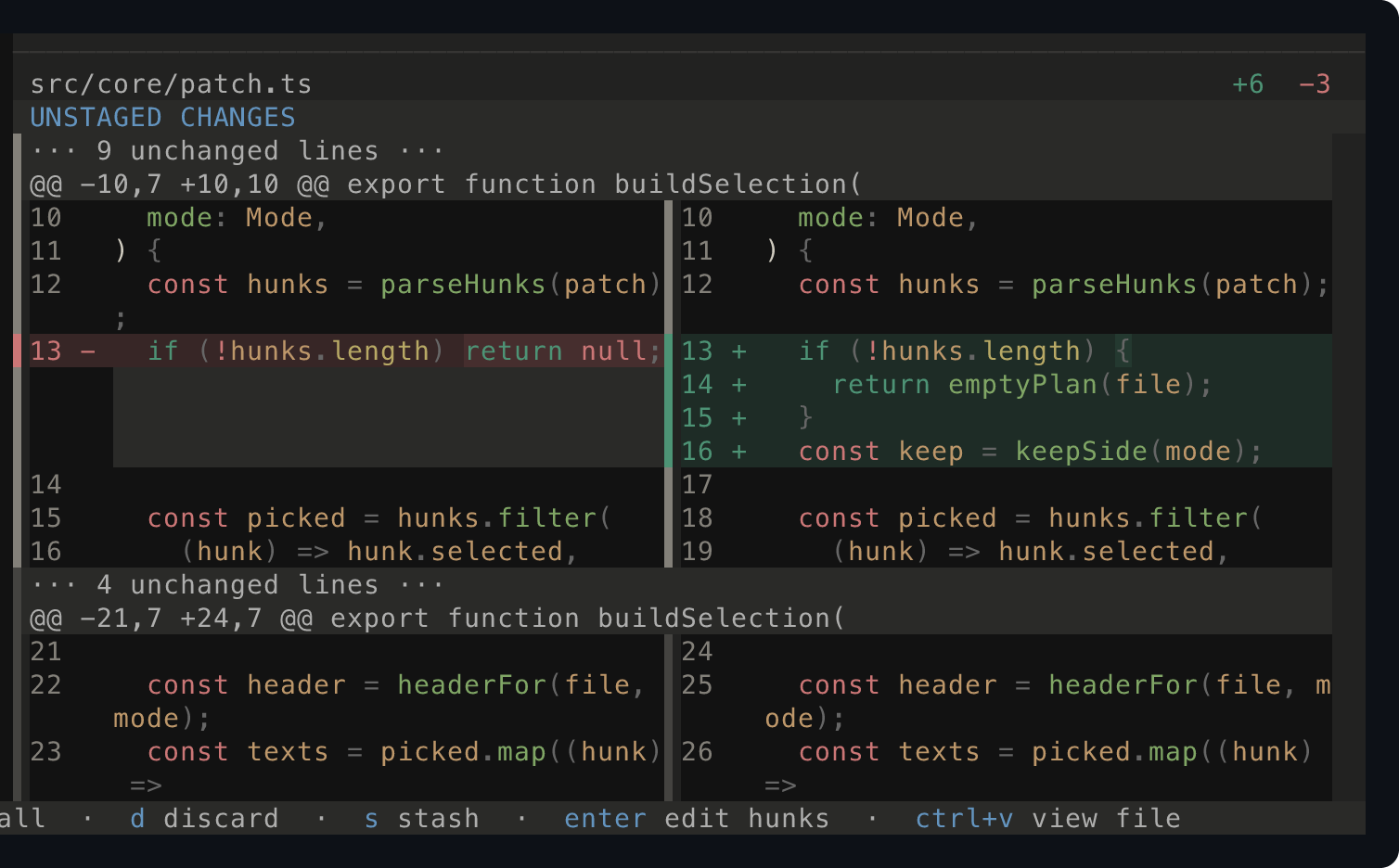
split — the two versions sit at the same height.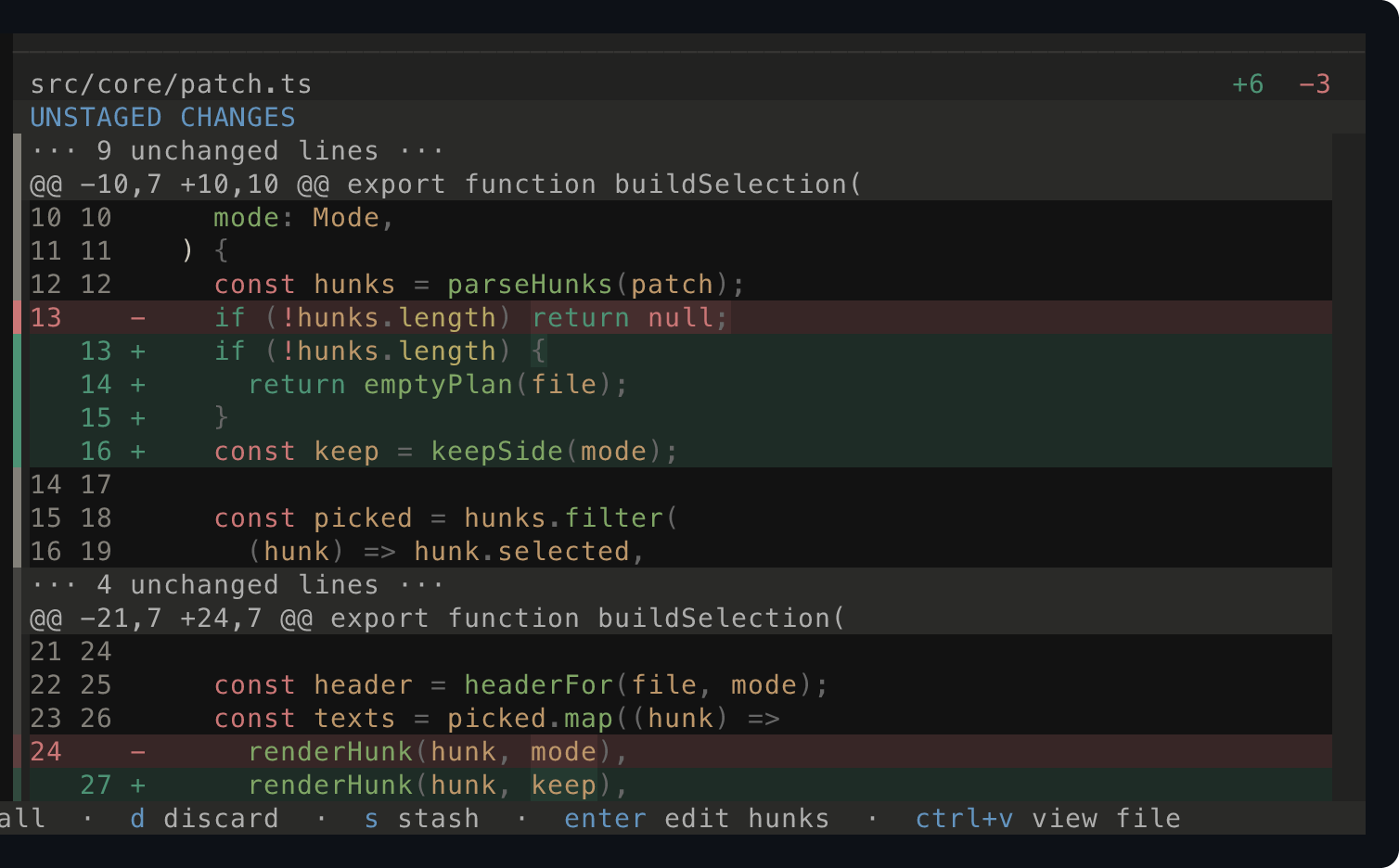
stack — one column, which needs less width.auto is the default. Side by side is easier for a change that rewrites a line,
because the two versions sit at the same height. One column is easier in a
narrow pane, where two columns leave no room for the code.
Change it in the Options section of ;, or with diffLayout in the configuration.
Move around
Section titled “Move around”| Keys | Action |
|---|---|
0 |
Move into the diff |
j / k |
Scroll one line |
d / u |
Half a page |
space / b |
A page |
< / > |
Top or bottom |
esc |
Back to the panel |
From the panel, J and K scroll the diff without moving your focus.
Change what you see
Section titled “Change what you see”| Keys | Action |
|---|---|
} / { |
More or fewer unchanged lines around each hunk |
ctrl+w |
Show the whitespace changes |
M |
Show the whole file instead of the hunks |
) / ( |
Change how alike two files must be to count as a rename |
+ / _ |
Give the focused pane more of the screen |
) and ( matter when git shows a move as one delete and one add. Lower the
number until git pairs them.
Find text in the diff
Section titled “Find text in the diff”Press / to search the view you are reading. stage counts the matches while you
type. n and N move through them, and continue from the start after the last
one.
Compare against another point
Section titled “Compare against another point”Press W on a branch, a tag or a commit to mark it. Every reference you select
after that is compared against the mark. The pane then answers “what does this
branch change” instead of “what does this commit change”.
Press W again to clear the mark.
Read the code, not only the change
Section titled “Read the code, not only the change”Press w to put the cursor on a name and g to open its definition. Read
Navigating with LSP.